
 MobiCart
How Search Can Increase Sales in Your Shopify Mobile App
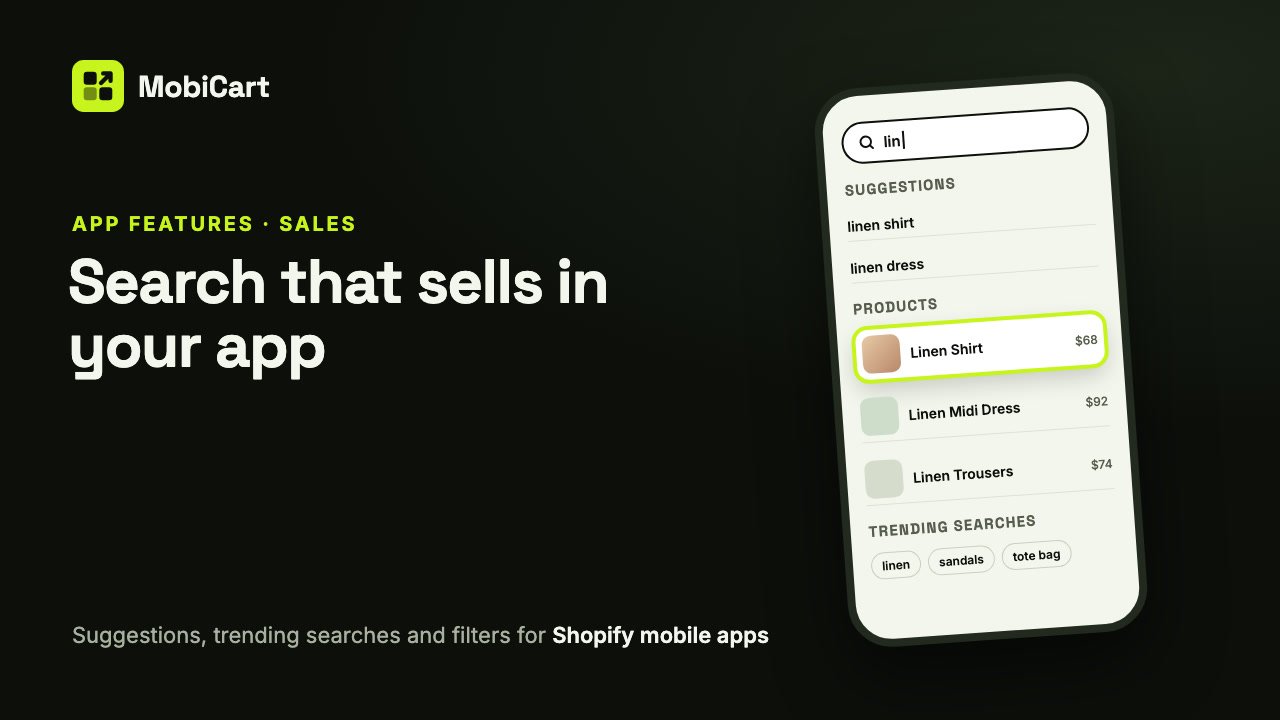
Search in your Shopify mobile app increases sales by taking shoppers who already know what they want straight to it: one tap on the search bar, a few letters, and the product is on screen.
Short answer: a shopper who searches has told you what they want to buy. Good app search shows them matching products while they type, puts in-stock products first, and lets them narrow a long list, so fewer of them give up before they find it.
Prefer to watch? The video above walks through every search setting in MobiCart in about three minutes.
What the search page is
In a MobiCart app, search opens right over Home when a shopper taps the search bar, or a Search tab in the bottom navigation. It has three moments: before the shopper types (recent searches, your trending searches, popular products or category tiles), as they type (suggestions from Shopify), and the results (with a count, sort and filters).
It runs on Shopify’s own search. Suggestions use Shopify’s predictive search and results use Shopify’s Storefront search, so the app uses Shopify’s relevance and Shopify’s filters on the products you make available to the app’s sales channel.
How search affects sales
It shortens the path for shoppers who know what they want
Browsing works when shoppers are looking around. A shopper who wants “linen shirt” doesn’t want to guess which collection it’s in. Search takes them from Home to that product in one tap and a few letters, and every screen it skips is a place they could have left.
Suggestions catch the product before the shopper finishes typing
After three characters, the app shows suggested searches and matching products from Shopify. A tap on a product suggestion opens it directly, without a results page in between. You can make suggestions match the brand, product type, tags, and SKU or barcode as well as the title, which helps shoppers who search the way they think about your products.
Out-of-stock products stop blocking the ones you can sell
By default, MobiCart asks Shopify to put sold-out products last in results. A shopper scanning the first few results sees what they can buy now, not a row of “sold out”. If you’d rather not show them at all, you can hide them.
Trending searches give undecided shoppers a place to start
Some shoppers open search without a clear idea. Before they type, the app can show up to ten terms you choose, as trending searches, plus popular products or category tiles. A tap on a term runs that search, so you can point shoppers at the products you most want to sell this week.
What we cannot tell you
We don’t have a study that says better app search lifts sales by a certain percentage, and we won’t make one up. How much search matters depends on your catalog size, how shoppers name your products, and how well your product titles and tags match those words. The section below shows how to measure it in your own numbers.
Each search setting and why it matters for sales
| Setting | What it does | Why it matters for sales |
|---|---|---|
| Show recent searches | The shopper’s own last searches, kept on their phone | Repeat buyers get back to what they looked at before in one tap |
| Trending searches | Up to 10 terms you promote | You steer undecided shoppers to products you want to move |
| Show popular products | Best selling, newest, or a collection, before typing | Shoppers see buyable products before they type anything |
| Show suggestions | Searches and products from Shopify as they type | The product shows up before the shopper finishes the word |
| Brand, Product type, Tags, SKU and barcode | What suggestions match besides the title | Shoppers find products by the words they actually use |
| Out-of-stock products | Last, in order, or hidden | In-stock products get the top of the list |
| Let shoppers sort, Let shoppers filter | Price sort, and Shopify’s filters | Big result lists become short ones |
| Show price, Show original price when on sale | Prices on results and suggestions | Discounts are visible at a glance |
Which template to choose
| Store type | Template | Why |
|---|---|---|
| Fashion, beauty, gifts | Discover | Popular products and trending chips sell before the shopper types |
| Electronics, parts, supplies | List | Compact rows read well for long product names and part numbers |
| Big catalogs with clear categories | Browse | Category tiles help shoppers who would rather browse than type |
Two rules hold for every store: put the terms people actually search for in Trending searches, and keep sold-out products out of the top of the results.
How to set it up in MobiCart
- In the MobiCart App Builder, open the Pages menu and choose Search.
- Pick a template under Templates: Discover, List or Browse.
- Add your Trending searches, one per line, and choose what shows before the shopper types.
- Turn on the extra fields suggestions should match, such as SKU and barcode.
- Set Out-of-stock products, sort and filters under Results, and the layout under Layout.
- Save as Draft, check it on your phone with Live preview, then Publish.
The full step-by-step guide, with every setting and its default, is in the docs: Set up the search page in your Shopify mobile app.
Mistakes that cost sales
Product titles that don’t use shoppers’ words. Shopify’s search matches what’s in your products. If shoppers search “hoodie” and your titles say “pullover”, add the word to the title, a tag or the product type, and switch on matching for tags or product type.
Leaving trending searches empty or stale. Last season’s terms send shoppers to sold-out products. Update them when your range changes.
Showing sold-out products first. If Out-of-stock products is set to show them in order, a popular sold-out item can fill the top of the results. Show them last, or hide them.
No filters on a big catalog. “240 results” with no way to narrow them is a dead end. Set up filters in Shopify’s Search & Discovery app and keep Let shoppers filter on.
How to tell if it is working
Compare a couple of weeks before and after a change.
- Orders from the app and items per order: does search help shoppers find more of what they came for?
- Sales of the products behind your trending terms: do they sell better while promoted?
- Searches with no results: try the words your customers use in your own app. If a common word finds nothing, fix the product titles or tags in Shopify.
Change one thing at a time, so you know which change made the difference.
Frequently asked questions
Does a search bar really increase sales in a mobile app?
It can, for shoppers who know what they want, by removing the steps between wanting a product and seeing it. We have no percentage to promise; compare your app’s orders before and after you change it.
Does MobiCart use Shopify’s search?
It runs on the same engine. The app uses Shopify’s predictive search and Shopify’s Storefront search, so ranking and filters follow your Shopify setup, for the products available on the app’s sales channel.
Can shoppers search by SKU or barcode?
Yes, in suggestions, when you switch on SKU and barcode under As the shopper types.
Will sold-out products clutter the results?
Not by default. MobiCart shows them last, and you can hide them instead.
Do I need an extra search app?
No. Search works with Shopify’s built-in search. Shopify’s free Search & Discovery app adds more filters if you want them.
Can I change search without releasing a new app?
Yes. The search page is part of your app’s design in the Builder. Save, preview and publish, and shoppers get the change.
Try it on your own store
Building and previewing your app in MobiCart is free, so you can try every search template on your own phone before you decide anything. The Free plan even publishes a branded Android app on your own Google Play account, with 5 orders a month. Launch is $19 a month for iOS and Android with 200 orders a month, Grow is $49 a month with unlimited orders, and Advanced is $99 a month and adds multi-language and multi-currency. Every plan is flat, with no revenue share. See pricing for the details.
Working on the rest of the shopping path? Read Collection Filters That Increase Sales in Your Shopify App and How a Home Header Can Increase Sales in Your Shopify App.
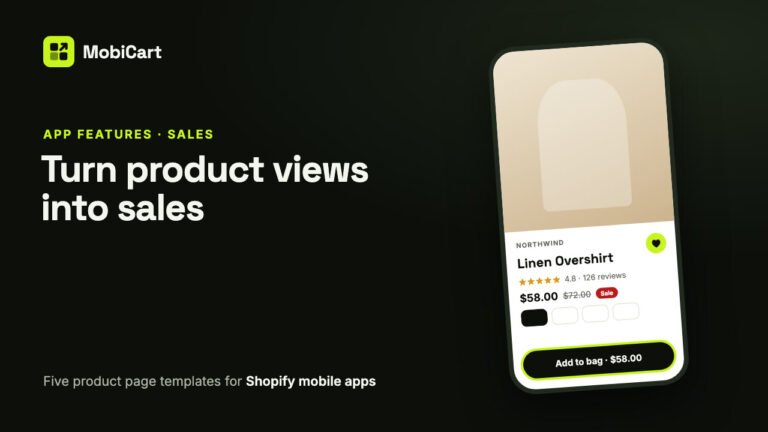
How a Product Page Template Can Increase Sales in Your Shopify Mobile App
Every shopper who buys passes through the product page. Here is how a template that fits your photos, a buy button in reach, reviews and the wishlist help more of them tap Add to cart.
Read article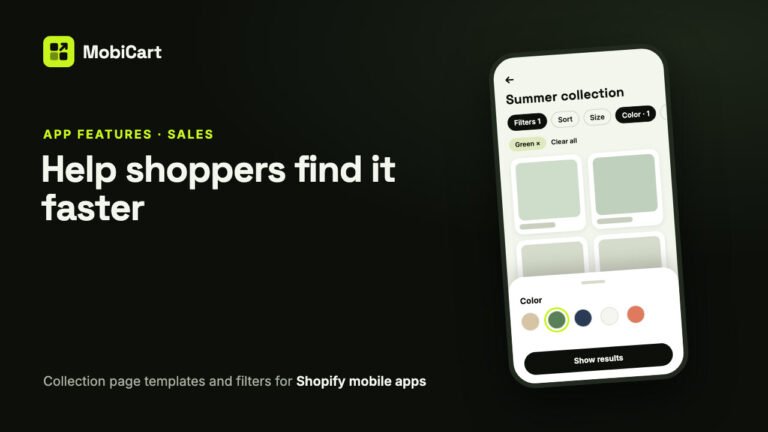
How Collection Page Filters Can Increase Sales in Your Shopify Mobile App
Collection page filters help shoppers narrow a long list to the products they would buy. How the templates, sort and Shopify filters work, and how to measure the effect.
Read article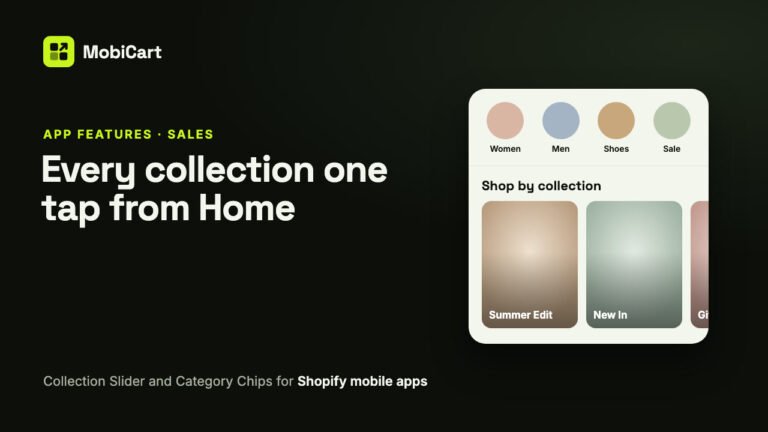
How a Collection Slider and Category Chips Can Increase Sales in Your Shopify Mobile App
A Collection Slider and Category Chips get shoppers from your app’s Home page to the right collection in one tap. Here is how that helps sales, which block to pick, and how to measure it.
Read article