
 MobiCart
How Collection Page Filters Can Increase Sales in Your Shopify Mobile App
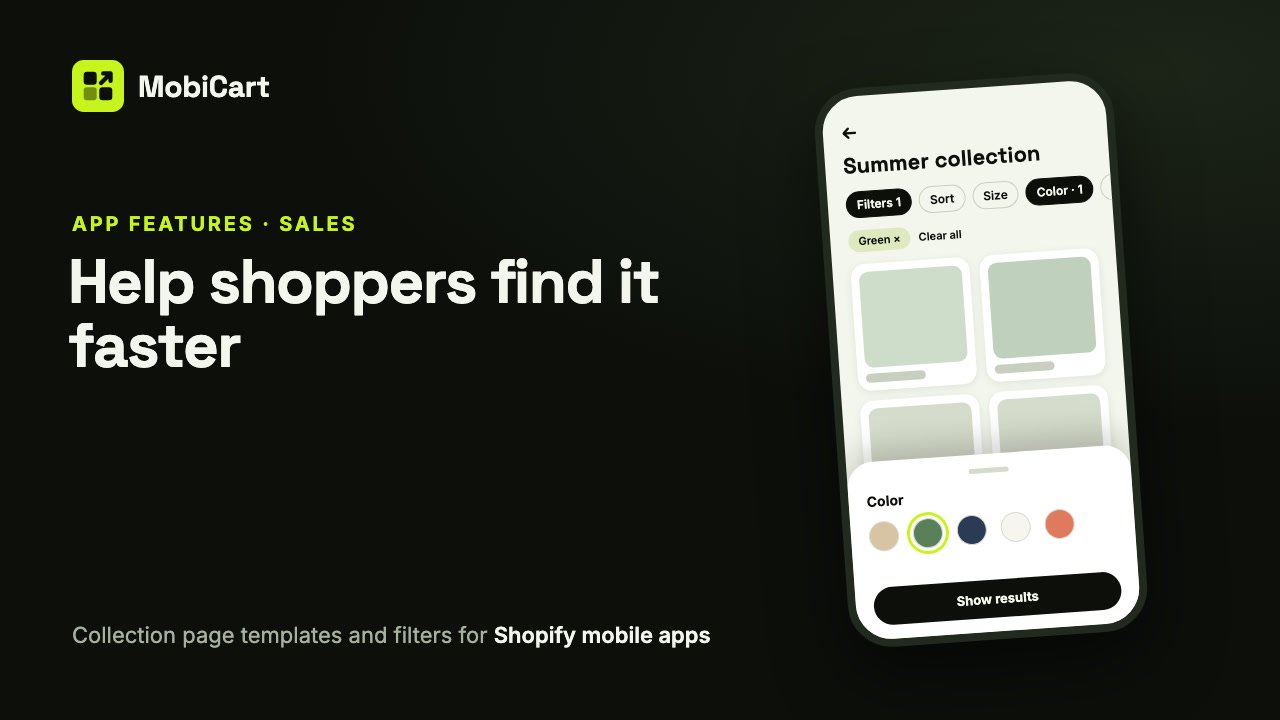
Collection page filters can increase sales in your Shopify mobile app by letting shoppers narrow a long list down to the few products they would actually buy, in a couple of taps, before they give up scrolling. This post explains how the collection page and its filters do that, which template suits which store, and how to check the effect in your own numbers.
Short answer: a shopper who opens a collection of 200 products and sees the wrong 20 first often leaves. A collection page with the right template, a sensible default sort and filters from your Shopify store puts the right products in front of them sooner.
What the collection page is
The collection page is the screen your app opens for every collection: from a View more link on Home, a category, a menu or a banner. In MobiCart you design it once, in the Builder, and every collection uses it with its own title, image and products.
You choose one of three templates:
- Grid: the title and description on top, then a grid of products.
- Hero: the collection’s image full-width with its title over it, then larger cards.
- Catalog: a compact title, then filter chips and sort, made for big collections.
Then you choose how products are sorted, how many load at a time, and which filters shoppers get.
How the collection page affects sales
It shows the right products first
Shoppers see the top of a collection before anything else. Sort by default decides what that is: the collection’s own order, best sellers, newest, price or name. A sale collection sorted by price, or a new-in collection sorted by newest, starts the shopper where they already want to be.
Filters cut a long list down to a short one
Scrolling past products that don’t fit, wrong size, wrong color, over budget, is where browsing turns into leaving. With filters on, a shopper taps a chip such as Size or Color, picks a value and sees only what matches. Each pick stays visible as a chip they can remove with one tap, so changing their mind costs nothing.
Filters use what your store already knows
The filters come straight from your Shopify store’s Search & Discovery setup: availability and price by default, plus anything you add there, such as brand, product type, tags, variant options or metafields. You set them up once in Shopify, and the app picks them up, names, swatches and counts included.
Buying starts on the list
With buy buttons on, shoppers add a product to the cart from the collection itself, without opening the product page first. Products with options open a picker, so nobody adds the wrong size by accident.
What we cannot tell you
We don’t have a study that says filters on a collection page lift sales by a given percentage, and we won’t invent one. The effect depends on how big your collections are and how good your filter setup in Shopify is. A collection of 12 products barely needs filters; a collection of 400 almost certainly does. The section on measuring below shows how to find out for your own store.
Each setting and why it matters for sales
| Setting | What it does | Why it matters for sales |
|---|---|---|
| Template (Grid, Hero, Catalog) | Sets the page’s layout | Hero sells a mood; Catalog helps shoppers narrow down a big range |
| Sort by default | The order shoppers see first | Puts best sellers, new arrivals or low prices at the top |
| Let shoppers change the sort | A Sort button | Price-led shoppers can reorder by price themselves |
| Products per load | 6 to 48 at a time | Enough products to browse without a slow first screen |
| Let shoppers filter | Filters from Shopify | Shoppers reach a short list of products that fit |
| Filter bar | Chips under the title, or one Filter button | Chips put the most useful filters one tap away |
| Hide options with no products | Leaves out dead ends | No tapping a filter that shows nothing |
| Show in-stock products only | Hides sold-out products | Shoppers never fall for something they can’t buy |
| Filters shoppers see, in order | Hide and reorder filters | The filters that matter most come first |
| Buy buttons | Add to cart from the list | One step fewer between wanting and buying |
Which template to choose
| Store | Template | Filters |
|---|---|---|
| Fashion and apparel | Catalog | Size, Color, Price, as chips |
| Beauty and wellness | Grid | Product type, Price, one Filter button |
| Lookbooks and small drops | Hero, large cards | Off |
| Electronics and big catalogs | Catalog, List layout | Brand, Product type, a spec metafield |
| Food and flowers | Grid, List layout | Price, Availability |
Two rules hold for most stores:
- The bigger the collection, the more filters earn their place. Turn them on for any collection shoppers can’t see the end of.
- Put the deciding filter first. For clothing that’s usually Size; for gifts, Price. Order the chips the way your shoppers decide.
How to set it up in MobiCart
- In the MobiCart Builder, open the Pages menu and choose Collection.
- Pick Grid, Hero or Catalog under Templates.
- Under Layout, choose cards per row, card style and corners.
- Under Products, set Sort by default and Products per load.
- Under Filters, switch on Let shoppers filter, pick the Filter bar, and tick and order the filters in Filters shoppers see.
- Save as Draft, check it on your phone with Live preview, then Publish.
The full step-by-step guide, with every setting, is in the docs: Set up the collection page and filters in your Shopify mobile app.
Mistakes that cost sales
- Filters on, nothing set up in Shopify. If Search & Discovery has no filters for a collection, shoppers get Sort only. Set filters up in Shopify first, then choose them in MobiCart.
- Tag filters that read like code. A tag filter shows tags as typed, so “brand_apple” looks broken. Keep Tidy tag names on, or build a Brand filter from vendor instead.
- Sold-out products at the top. A shopper who taps three sold-out products in a row stops tapping. Turn on Show in-stock products only, or sort by best selling.
- The deciding filter buried. If Size is the sixth chip, many shoppers never reach it. Move it up in Filters shoppers see.
How to tell if it is working
Compare a few weeks before and after you change the collection page.
- Add-to-cart rate in the app. Filters and buy buttons should show up here first.
- Orders from the app. The number that matters in the end.
- What shoppers ask support. Fewer “do you have this in my size?” messages is a good sign.
Change one thing at a time, such as turning filters on, so you know what made the difference.
Frequently asked questions
Do I need Shopify’s Search & Discovery app for filters?
Yes. MobiCart reads the filters you set up there. Availability and price are there by default; anything more, you add in Search & Discovery.
Can I design a different page for each collection?
No. You design one collection page and every collection uses it, each with its own title, image and products.
Which template is best for a large collection?
Catalog. Its title is compact and its filters are on from the start, so shoppers can narrow the list right away.
Will filters slow down my app?
The page loads 24 products at a time by default and more as shoppers scroll, so a filtered list starts small. You can set 6 to 48.
Can shoppers see why a filter shows nothing?
With Hide options with no products on, an option with no products is left out. If a combination of picks matches nothing, the app says so and offers Clear all filters.
Can I hide a filter I set up in Shopify?
Yes. Untick it in Filters shoppers see. It stays in Shopify for your web store.
Try it on your own store
Building and previewing your app in MobiCart is free, so you can try every template and filter setup on your own phone before you decide anything. When you publish, every plan is flat, with no revenue share, and there’s a Free plan: see pricing for what each one includes.
Planning the rest of your app? Read How Product Blocks Can Increase Sales in Your Shopify Mobile App and How a Category Browser Can Increase Sales in Your Shopify Mobile App.
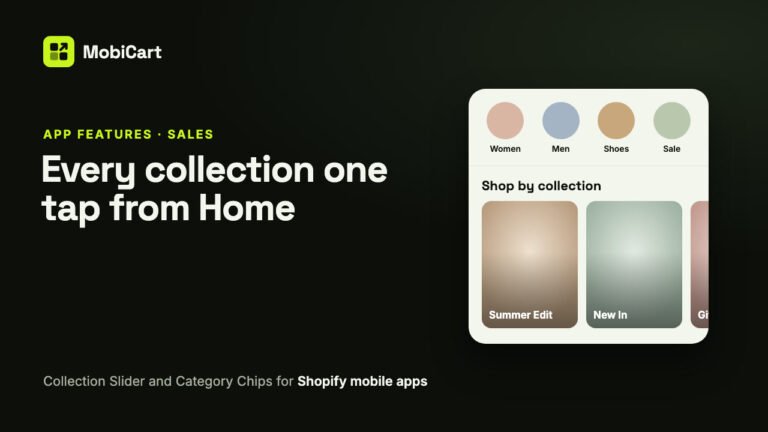
How a Collection Slider and Category Chips Can Increase Sales in Your Shopify Mobile App
A Collection Slider and Category Chips get shoppers from your app’s Home page to the right collection in one tap. Here is how that helps sales, which block to pick, and how to measure it.
Read article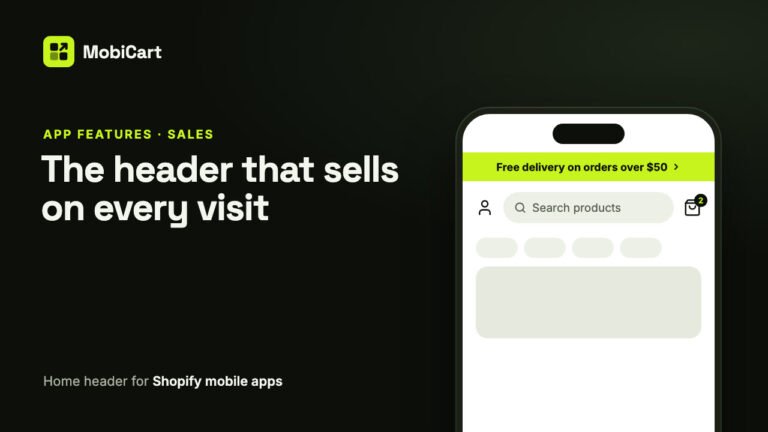
How a Home Header Can Increase Sales in Your Shopify Mobile App
A home header keeps search one tap away, shows a live cart count and puts your current offer in an announcement bar. Here is how each part affects sales.
Read article
How Home Page Banners Can Increase Sales in Your Shopify Mobile App
How an Image Slider, a Promo Banner and a Countdown Timer put your best offer one tap away in your Shopify mobile app, and how to measure the effect.
Read article