
 MobiCart
How Home Page Banners Can Increase Sales in Your Shopify Mobile App
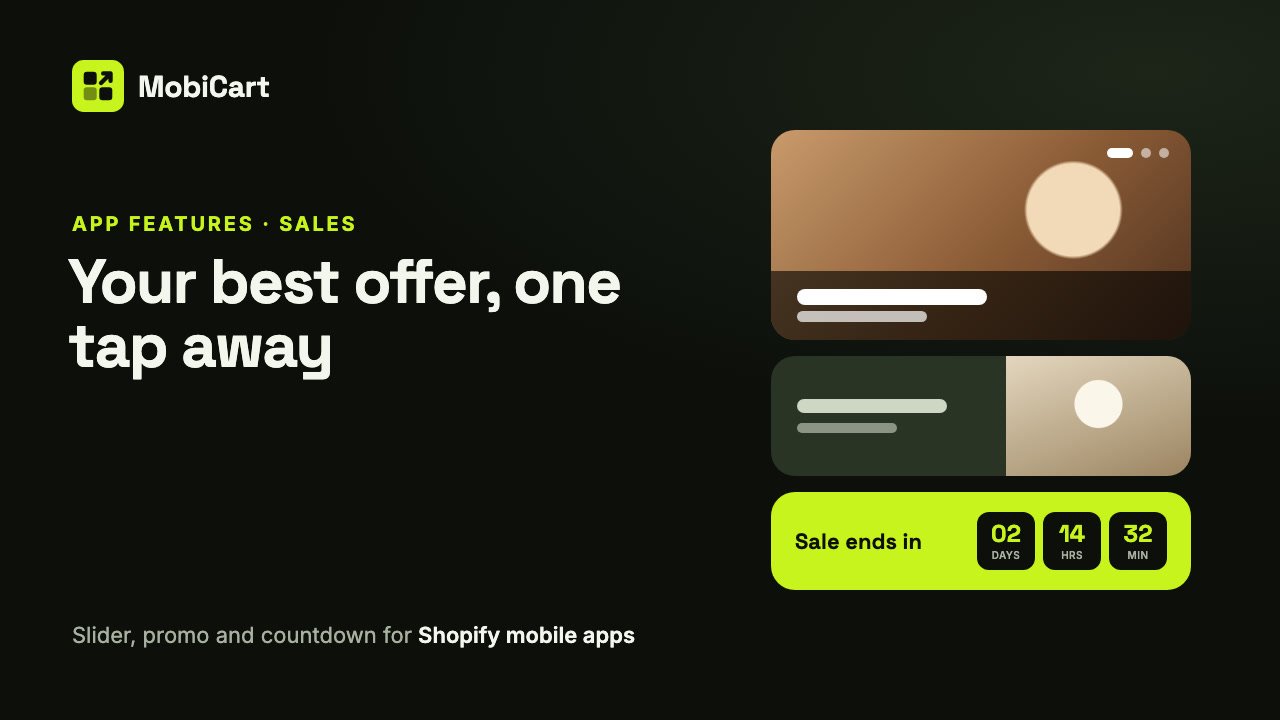
Banners can increase sales in your Shopify mobile app by putting your best offer on the first screen shoppers see, and taking them to it in one tap. This post explains how the three MobiCart banner blocks do that, which to use for which campaign, and how to check the effect in your own numbers.
Short answer: your app opens on the Home page. A banner there tells shoppers what is new or on sale, and a tap opens the product or collection, so the path from “that looks good” to the product page is one step long.
Prefer to watch? This video tutorial shows all three banners being set up.
What the banner blocks are
MobiCart’s App Builder has three banner blocks for your app’s Home page:
- Image Slider: up to 10 full-width slides that swipe and autoplay, each with an optional heading, text and button.
- Promo Banner: one tappable banner with a short message, on your brand color or with an image.
- Countdown Timer: a live countdown to the end of a sale, which hides itself or shows a message when time is up.
Every slide and banner links to a product or a collection in your Shopify store. No code is involved.
How banners affect sales
Each mechanism below removes one step between seeing an offer and buying it.
1. Your offer is the first thing shoppers see
A shopper who opens your app without a plan looks at whatever is at the top of Home. If that space shows your current sale or your new collection, the offer finds them, instead of waiting for them to search for it.
2. One tap takes them to the products
On a website, a promotion often sends shoppers to a page they then have to browse. In the app, tapping a slide or a promo banner opens the exact product or collection you picked, with no search and no menu.
3. A real deadline helps people decide
A countdown shows exactly how long a sale has left, ticking every second. When a shopper is unsure, a clear end time is a reason to decide now rather than “later”, which often means never. Use it only for real deadlines, and end it when your Shopify discount ends.
4. Several campaigns share one spot
An Image Slider rotates through up to 10 slides, so a new collection, a sale and a gift guide can all have the top of the page without pushing your products further down.
What we cannot tell you
We don’t have a study showing that banners lift app sales by a certain percentage, and we won’t quote one. The effect depends on your offer, your images and your shoppers. What we can tell you is how to measure it in your own store, further down.
What each banner does for sales
| Banner | Best for | Why it matters for sales |
|---|---|---|
| Image Slider | Several campaigns at once, new collections, seasonal looks | Big images sell the look; each slide opens its own products |
| Promo Banner | One clear offer: free shipping, a new arrival, a bundle | One message, one tap, nothing competing for attention |
| Countdown Timer | Sales with a real end date | A visible deadline gives a reason to buy now |
Which banner to choose
| Store type | Start with | Add |
|---|---|---|
| Fashion and beauty | Image Slider with 3 to 5 lifestyle slides | A Promo Banner for each new collection |
| Electronics and home | Promo Banner for shipping or warranty offers | A Countdown Timer during sale weekends |
| Food and drink | Image Slider with seasonal products | A Countdown Timer for limited drops |
| Big catalog | Image Slider whose slides open collections | One Promo Banner per campaign |
Two rules: one message per banner, and every banner links somewhere.
How to set it up in MobiCart
- In the App Builder, open your Home page and click Add blocks.
- Under Banner blocks, pick Image Slider, Promo Banner or Countdown Timer.
- Add your images and text, and pick a product or collection under Link.
- For a countdown, set Ends on and Ends at to match your discount’s end.
- Click Save as Draft, then Live preview to try it on your phone.
- Click Publish when it looks right.
Every setting is explained in the full guide: Add banners to your Shopify mobile app.
Mistakes that cost sales
Banners with no link. A shopper who taps a banner and nothing happens has hit a dead end. Give every slide and banner a link.
Too many slides. The first slide gets the most views. Put your strongest offer first and keep the rest few and fresh.
Images in the wrong shape. An image that doesn’t match the slider’s shape is trimmed at the edges, and text inside the image can be cut. Use images in the slider’s shape, about 1200 px wide.
A countdown that doesn’t match the sale. If the timer runs out while the discount is still on, or keeps going after it ended, shoppers stop trusting it. Set it to the same end time as your Shopify discount.
How to tell if it is working
Compare a couple of weeks before and after you add or change a banner.
- Sales of the promoted products in the app. The products in the banner should sell better while it runs.
- App orders during a countdown sale. Compare with a similar sale without one.
Change one banner at a time, so you know which change made the difference.
Frequently asked questions
Do banners really increase sales in a mobile app?
They can, by showing your offer first and making it one tap away. We have no percentage to promise; compare sales of the promoted products before and after.
How many slides should my Image Slider have?
Fewer than you think: 3 to 5 is plenty for most stores. MobiCart allows up to 10.
Is a countdown timer pushy?
Not when the deadline is real. It tells shoppers something true and useful: when the sale ends. Don’t restart it to fake urgency.
Should every banner go to a sale?
No. Banners also work for new collections, gift guides and best sellers. What matters is that each one opens somewhere worth going.
Can I change banners without a new app release?
Yes. Banners are part of your Home page in the Builder. Save, preview and publish, and shoppers see the change.
Do banners work on iPhone and Android?
Yes. The same banners show in both apps.
Try it on your own store
Building and previewing your app in MobiCart is free, so you can try every banner on your own phone before you decide anything. See pricing for what each plan includes when you publish.
Planning the rest of your app? Read How Brand Colors Can Increase Sales in Your Shopify Mobile App and How a Category Browser Can Increase Sales in Your Shopify Mobile App.
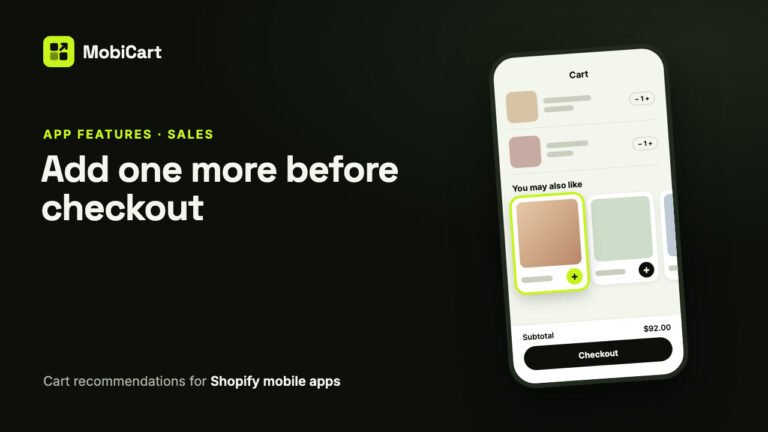
How Cart Recommendations Can Increase Sales in Your Shopify Mobile App
Cart recommendations put the products that go with a shopper’s cart one tap away, right before checkout. How the MobiCart cart page does it, and how to measure it.
Read article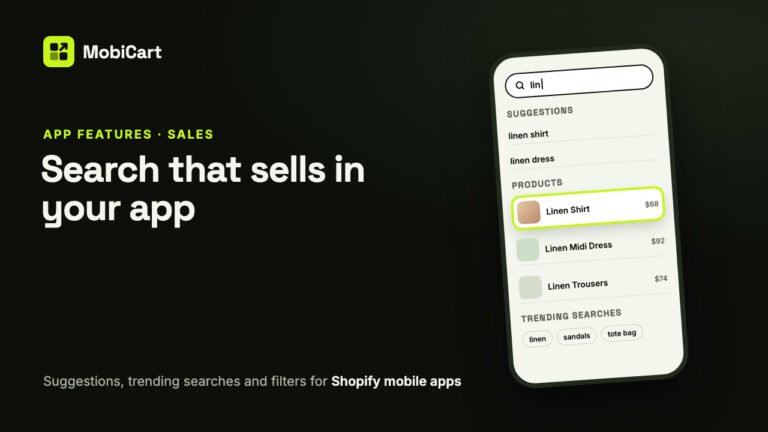
How Search Can Increase Sales in Your Shopify Mobile App
Search takes shoppers who know what they want straight to it. Here is how suggestions, trending searches and in-stock-first results help your Shopify mobile app sell.
Read article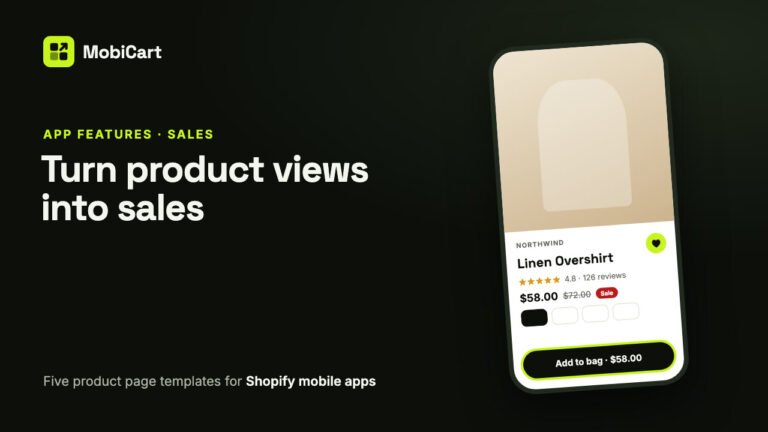
How a Product Page Template Can Increase Sales in Your Shopify Mobile App
Every shopper who buys passes through the product page. Here is how a template that fits your photos, a buy button in reach, reviews and the wishlist help more of them tap Add to cart.
Read article