
 MobiCart
How a Category Browser Can Increase Sales in Your Shopify Mobile App
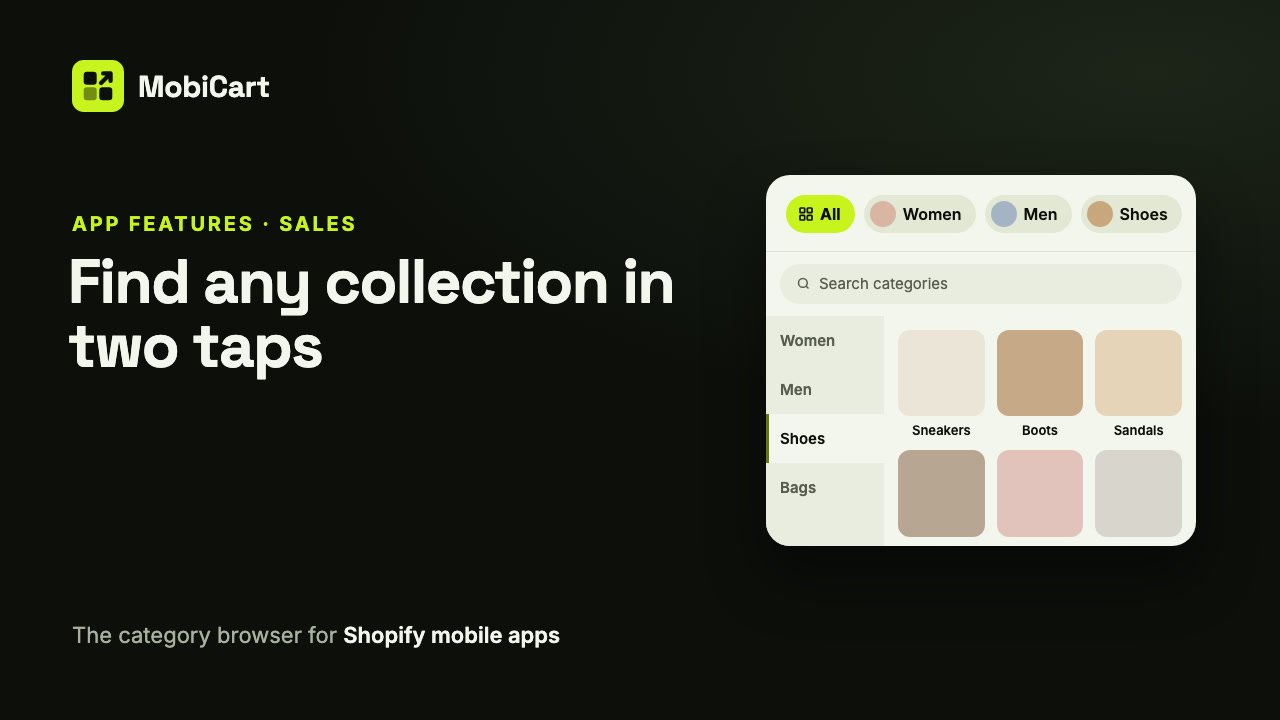
A category browser can increase sales in your Shopify mobile app by getting shoppers from Home to the right collection in a couple of taps, even when your store has hundreds of them. This post explains how, what to set up, and how to check it is working in your own numbers.
Short answer: shoppers can only buy what they find. A category browser puts every collection one tap behind a row on Home, with search for anyone who knows what they want, so fewer shoppers give up before they reach a product.
Prefer to watch? This video tutorial shows the whole setup.
What a category browser is
A category browser is a block on your app’s Home page with two parts. A chip row shows your main categories, with an All button pinned on the left. The All button opens a sheet with every category: a search bar, a side rail of top categories, and subcategories beside the one you pick.
In MobiCart it reads your Shopify store menu, so your app and your website stay organised the same way.
How a category browser affects sales
Four things change for the shopper. Each one shortens the path from opening the app to looking at the right products.
1. The big categories are on Home
A chip row of Women, Men, Shoes and Bags right under the search bar answers “where do I start?” before they scroll. One tap takes them into a collection.
2. Nothing is more than a couple of taps away
A store with hundreds of collections can’t put them all on Home. The All button is the answer: one tap opens every category, and one more opens the collection. Without it, deep collections are hard to reach in an app.
3. Search catches the shopper who already knows
Some shoppers open the app knowing exactly what they want. The sheet’s search bar searches your menu and every other collection in your store as they type, so “boots” leads straight to Boots instead of a long scroll.
4. It stays fast on big catalogs
A slow menu loses people. The app saves your menu on the phone, so the chips and the sheet open at once and refresh in the background. On a big menu, it loads a category’s subcategories only when a shopper picks it.
What we cannot tell you
We don’t have a study that says “a category browser lifts sales by X percent”, and we are not going to invent one.
How much it helps depends on how many collections you have, how shoppers use your app now, and how well your menu is organised. Treat this as a reasoned case and check it in your own numbers; the last section explains how.
What each part does for sales
| Part | What shoppers do with it | Why it matters for sales |
|---|---|---|
| Chip row | Tap a main category from Home | The first step into products takes one tap |
| All button | Open every category at once | Deep collections become reachable |
| Rail and subcategories | Move between departments without going back | Browsing keeps going instead of stopping |
| Search | Type a few letters to find a collection | The shortest path for shoppers who know what they want |
| “Shop all” link | See everything in a category | No dead end when a shopper wants to browse wide |
Which setup fits your store
| Store type | Menu | Chips show |
|---|---|---|
| Fashion or lifestyle | Your Main menu | The menu’s top level, with images |
| Big catalog, many departments | A menu made for the app | The menu’s top level, names only |
| A few hero collections | Your Main menu | Collections you pick (up to 20) |
| Seasonal promotions | A menu made for the app | Collections you pick, changed with the season |
Keep the All button visible in every setup: it is the way into everything that isn’t on the row.
How to set it up in MobiCart
The whole setup is in the MobiCart Builder, no code.
- Add the block. On the Home page, click Add blocks and choose Category Browser.
- Pick the menu. It starts on your store’s Main menu. Collection links become categories, up to three levels deep.
- Choose the chips. Your menu’s top level, or up to 20 collections you pick.
- Set up the All button and the sheet. Label, icon, search bar, rail and subcategory layout.
- Preview, then publish. Save a draft, scan the Live preview code to try it on your own phone, and publish.
Every setting is explained step by step in the docs: Add a category browser to your Shopify mobile app.
Mistakes that cost sales
A messy menu. The browser shows your menu as it is. Twenty top-level items with vague names make the row and the rail hard to read. Group them first.
Chips with no images. If you show images, give every collection one. A row with gaps looks unfinished.
Hiding the All button. Without it, everything past the row is out of reach.
Links that go nowhere in the app. Menu items that link to pages or websites are left out, and a collection that isn’t published to the MobiCart sales channel won’t show. Check both before you publish.
How to tell if it is working
Compare a couple of weeks before and after you publish.
- Collection views from the app. If shoppers find categories more easily, more of them should open collections.
- Searches in the sheet. What people type tells you which categories they expect, and which ones your row is missing.
- Orders from the app. The number that matters in the end.
If nothing moves, try a different menu or a different set of chips. Changes take minutes, and nothing reaches customers until you publish.
Frequently asked questions
Will a category browser really increase my sales?
It can, by making products easier to reach. We have no percentage to promise; compare your collection views and app orders before and after you publish it.
Is it worth it for a small store?
Yes, if you have more collections than fit on one screen. With only a handful, a simple chip row may be enough.
Do I have to build a new menu?
No. It reads the menu your website already uses. Make a separate menu only if the app should show something different.
Can shoppers search for categories?
Yes. The search bar in the sheet searches your menu and every other collection in your store.
Does it work on iPhone and Android?
Yes. One setup in the MobiCart Builder drives both.
Do I need a developer?
No. Everything is set in the Builder, and you can try it on your own phone before you publish.
Try it on your own store
Building and previewing your app in MobiCart is free, so you can set up the category browser and tap through it on your own phone before you decide anything. See pricing for what each plan includes when you publish.
Still planning your app’s navigation? Read How a Bottom Navigation Bar Can Increase Sales in Your Shopify Mobile App, or compare the options in The Complete Guide to Shopify Mobile App Builders in 2026.
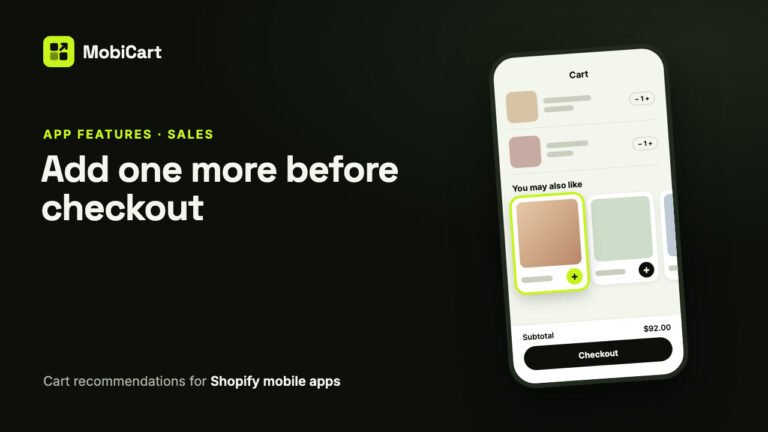
How Cart Recommendations Can Increase Sales in Your Shopify Mobile App
Cart recommendations put the products that go with a shopper’s cart one tap away, right before checkout. How the MobiCart cart page does it, and how to measure it.
Read article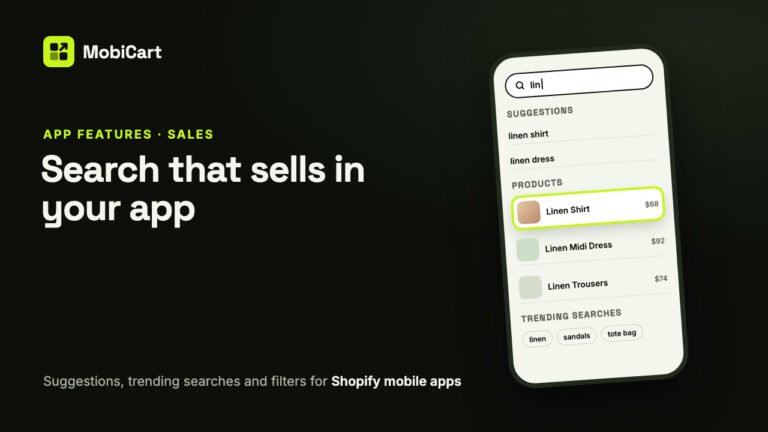
How Search Can Increase Sales in Your Shopify Mobile App
Search takes shoppers who know what they want straight to it. Here is how suggestions, trending searches and in-stock-first results help your Shopify mobile app sell.
Read article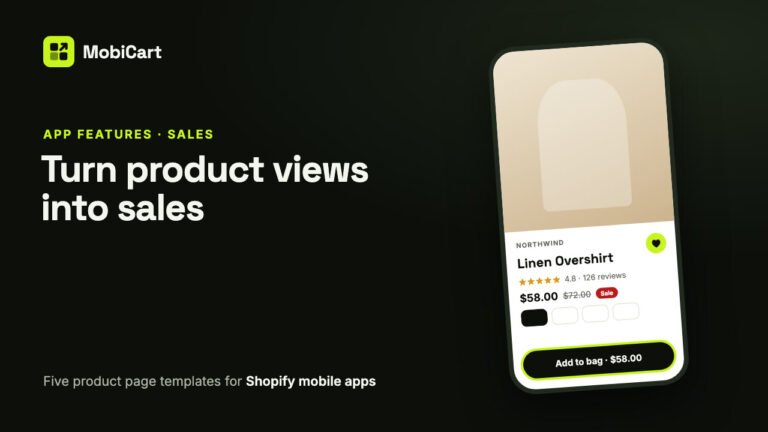
How a Product Page Template Can Increase Sales in Your Shopify Mobile App
Every shopper who buys passes through the product page. Here is how a template that fits your photos, a buy button in reach, reviews and the wishlist help more of them tap Add to cart.
Read article