
 MobiCart
How a Product Page Template Can Increase Sales in Your Shopify Mobile App
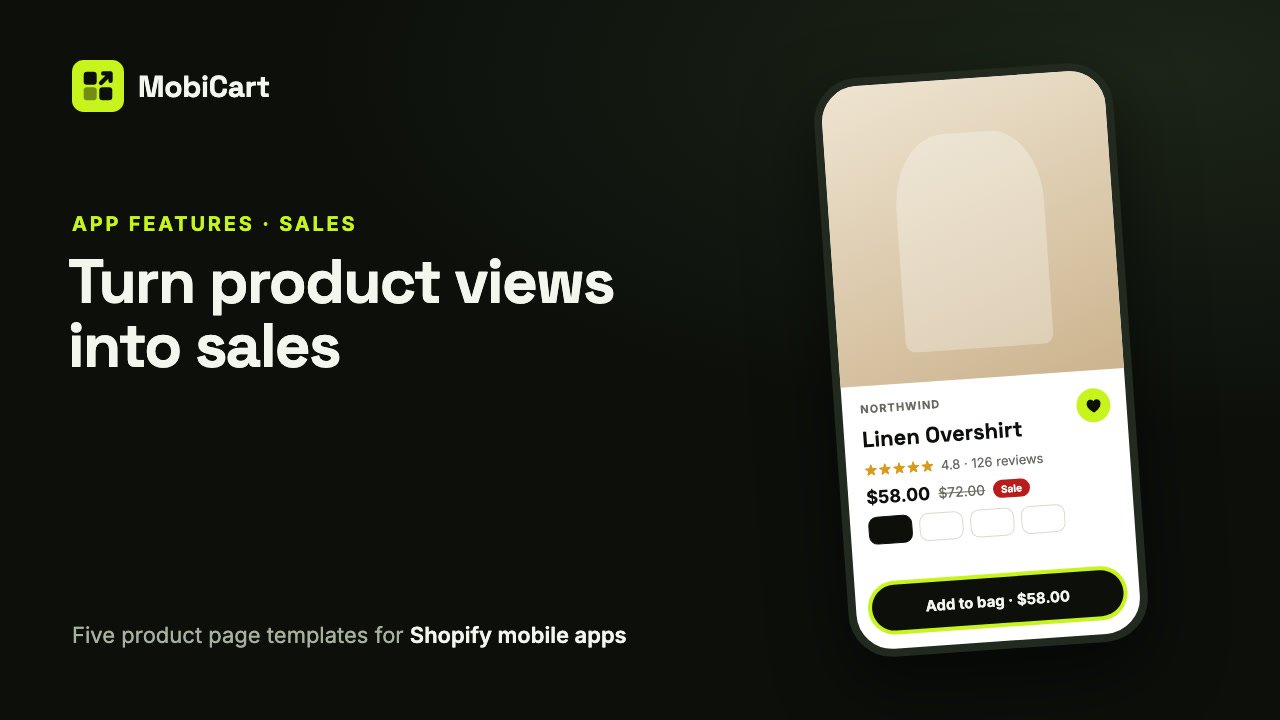
A product page template can increase sales in your Shopify mobile app because the product page is where shoppers decide: a layout that fits your photos, keeps the buy button in reach and answers the usual doubts (price, size, delivery, other buyers’ opinions) leaves fewer reasons to leave. This post explains how each part of the page works on that decision, and how to check it in your own numbers.
Short answer: every shopper who buys passes through the product page. MobiCart lets you pick one of five templates and turn on the details that remove doubt, like the sale price, reviews, pickup and shipping rows, so more of the shoppers who reach the page tap Add to cart.
What a product page template is
In MobiCart, the product page is one design for every product in your store. You pick a template in the Builder and choose what it shows; each product fills it with its own photos, variants, prices and description from Shopify. There are five templates:
- Classic: photos in a row that swipes, with everything stacked underneath.
- Immersive: a tall edge-to-edge photo, details in a card over it, and Add to cart pinned at the bottom.
- Compact: a small photo beside the title and price, options as dropdowns, and the description folded away.
- Showcase: the photo fills the page behind the header, with color dots on it and a big buy button.
- Boutique: a rounded photo card with a badge, options as photo tiles, and a floating price button.
How the product page affects sales
Four things on the page decide whether a shopper buys. Each one removes a reason to hesitate.
1. The photos sell the product
On a phone the photo is most of the screen. A template that suits your photos (tall photos in Immersive or Showcase, a photo per variant in Boutique) shows the product the way it was shot. With Show the chosen variant’s photo first, picking a color shows that color, so the shopper doesn’t have to guess what they are buying.
2. The buy button is always in reach
On Immersive, Showcase and Boutique, the buy button stays pinned at the bottom of the screen while the shopper scrolls through the details. Showcase and Boutique put the price on the button too. The decision and the action sit in the same place.
3. Doubts are answered on the page
Shoppers leave to look things up: is it on sale, what does it cost per 100 g, when will it ship, can I pick it up, what do others say. The product page can answer each of these with the original price and a sale badge, the unit price, the back-order note, in-store pickup, your shipping and returns policies, and Judge.me reviews with the rating under the title.
4. A second chance to keep shoppers
Not every shopper buys this product. Related products under the page give them the next one to look at, and the wishlist button lets them save it for later instead of forgetting it. Both keep the visit going.
What we cannot tell you
We don’t have a study that says one product page template lifts sales by a given percentage, and we won’t invent one. The effect depends on your products, your photos and your shoppers. What we can say is which step each option removes, and how to measure the change in your own store, below.
Every option and why it matters for sales
| Option | What it does | Why it matters for sales |
|---|---|---|
| Template | Picks one of five layouts | A layout that suits your photos shows the product at its best |
| Show the chosen variant’s photo first | The variant’s photo moves to the front | Shoppers see the color they’re about to buy |
| Show original price when on sale and Show sale badge | The compare-at price, struck through, with a badge | The saving is visible at the moment of decision |
| Show unit price | “$4.80 / 100 g” for products sold by measure | Makes value easy to compare |
| Show back-order note | “Ships when back in stock” | Out-of-stock variants that can be ordered still sell |
| Show in-store pickup | Where the product can be picked up | Local shoppers skip shipping |
| Button text | “Add to cart” or your own words | Matches your store’s voice |
| Show quantity picker | Follows each variant’s minimum, maximum and step | Shoppers buy more than one in one tap |
| Show shipping and returns | Your policies as rows that open | Answers the last question before paying |
| Reviews (Judge.me) | Rating under the title, reviews, Write a review | Other buyers’ words build trust |
| Show related products | “You may also like” | Gives the next product to look at |
| Let shoppers save products | A wishlist button on the page | Shoppers come back for what they saved |
Which to choose for your store
| Store type | Template | Turn on |
|---|---|---|
| Fashion and apparel | Immersive or Classic | Variant photo first, sale badge, related products |
| Beauty and wellness | Boutique | Discount badge on the photo, reviews |
| Electronics and parts | Compact | Brand, product type and tags, shipping and returns |
| Food and groceries | Classic | Unit price, quantity picker, in-store pickup |
| One hero product | Showcase | Price on the button, reviews |
Two rules: let your photos pick the template, and only turn on details your products have (a unit price for clothes adds nothing).
How to set it up in MobiCart
- In the MobiCart App Builder, open the page list and choose Product.
- Under Templates, click the template that suits your photos.
- On the right, set the Layout, Product details, Buying and More on the page options.
- Under Reviews, connect Judge.me and choose how reviews show.
- In App settings, choose whether Products open as a full page or a bottom sheet, and keep the wishlist on.
- Click Save as Draft, check real products with Live preview, then Publish.
The full step-by-step guide, with every setting and its default, is in the docs: Design the product page in your Shopify mobile app.
Mistakes that cost sales
- A template that fights your photos. Square product shots on white cropped into a tall frame lose the product. Use Show the whole photo or a template that fits.
- A long button label. “Add this item to your shopping cart” gets cut off on small phones. Two or three words are enough.
- Reviews turned on but not connected. Until Judge.me is connected, the app hides the reviews section, so the page shows no social proof at all.
- Publishing without checking real products. A product with no sale price, or ten variants, can look different from your sample. Check a few in Live preview first.
How to tell if it is working
Compare the four weeks before and after you publish a new product page:
- Add-to-cart rate: how many product views end in an add to cart. Shopify’s reports show added-to-cart sessions.
- Conversion rate of app orders: Shopify shows the sales channel each order came from.
- Wishlist saves: how many products shoppers save, and whether they come back to buy them.
- Review count in Judge.me, if you let shoppers write reviews in the app.
Change one thing at a time (the template, then the details), so you know which change did it.
Frequently asked questions
Does the product page template really affect sales?
It changes how easily shoppers can see the product, answer their doubts and tap the buy button. We don’t have a figure for the effect, so measure your add-to-cart rate before and after.
Which product page template converts best?
There is no single best one. The template that suits your photos and your catalog usually works best: tall photos in Immersive or Showcase, many options in Compact, a photo per variant in Boutique.
Should I show reviews on the product page?
Yes, if you have them. Reviews come from Judge.me, show the rating under the title, and can let shoppers write a review that waits for your approval.
Is a bottom sheet better than a full product page?
A bottom sheet keeps the shopper on the screen they were browsing, so they can swipe it away and carry on. A full page gives the product all the room. Set it in App settings under Products open as.
Does a wishlist help sales?
It gives shoppers who aren’t ready to buy a way to come back to the product instead of forgetting it. The wishlist is on by default in MobiCart.
Can I use a different layout for some products?
No. One template applies to every product, and each product fills it with its own data from Shopify.
Try it on your own store
Building and previewing your app in MobiCart is free, so you can try every product page template on your own phone before you decide anything. The Free plan includes a branded Android app, and every plan is a flat price with no revenue share: see pricing for what each plan includes.
Planning the rest of your app? Read How Product Blocks Can Increase Sales in Your Shopify Mobile App and How a Home Header Can Increase Sales in Your Shopify Mobile App.
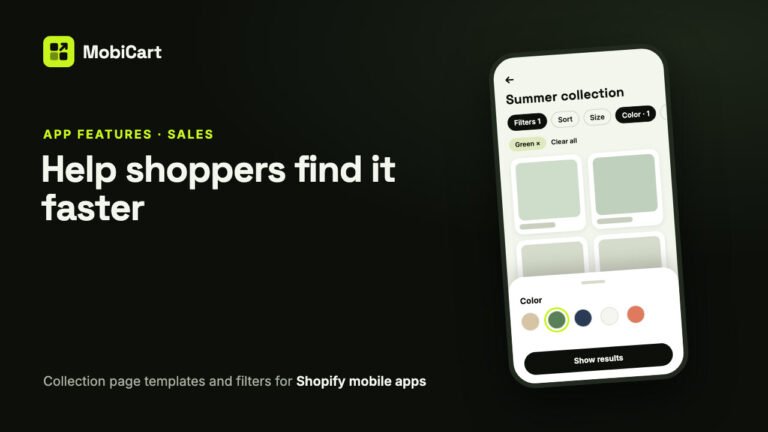
How Collection Page Filters Can Increase Sales in Your Shopify Mobile App
Collection page filters help shoppers narrow a long list to the products they would buy. How the templates, sort and Shopify filters work, and how to measure the effect.
Read article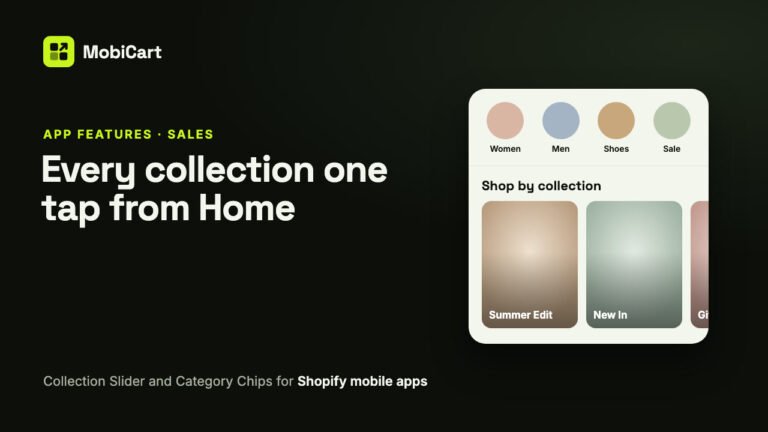
How a Collection Slider and Category Chips Can Increase Sales in Your Shopify Mobile App
A Collection Slider and Category Chips get shoppers from your app’s Home page to the right collection in one tap. Here is how that helps sales, which block to pick, and how to measure it.
Read article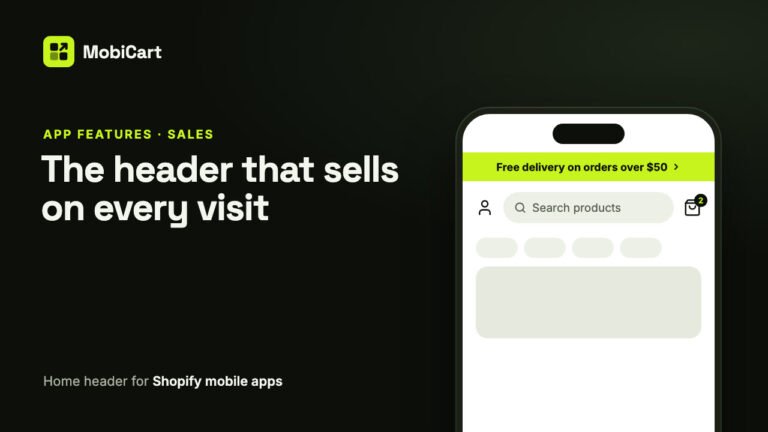
How a Home Header Can Increase Sales in Your Shopify Mobile App
A home header keeps search one tap away, shows a live cart count and puts your current offer in an announcement bar. Here is how each part affects sales.
Read article