
 MobiCart
How Brand Colors Can Increase Sales in Your Shopify Mobile App
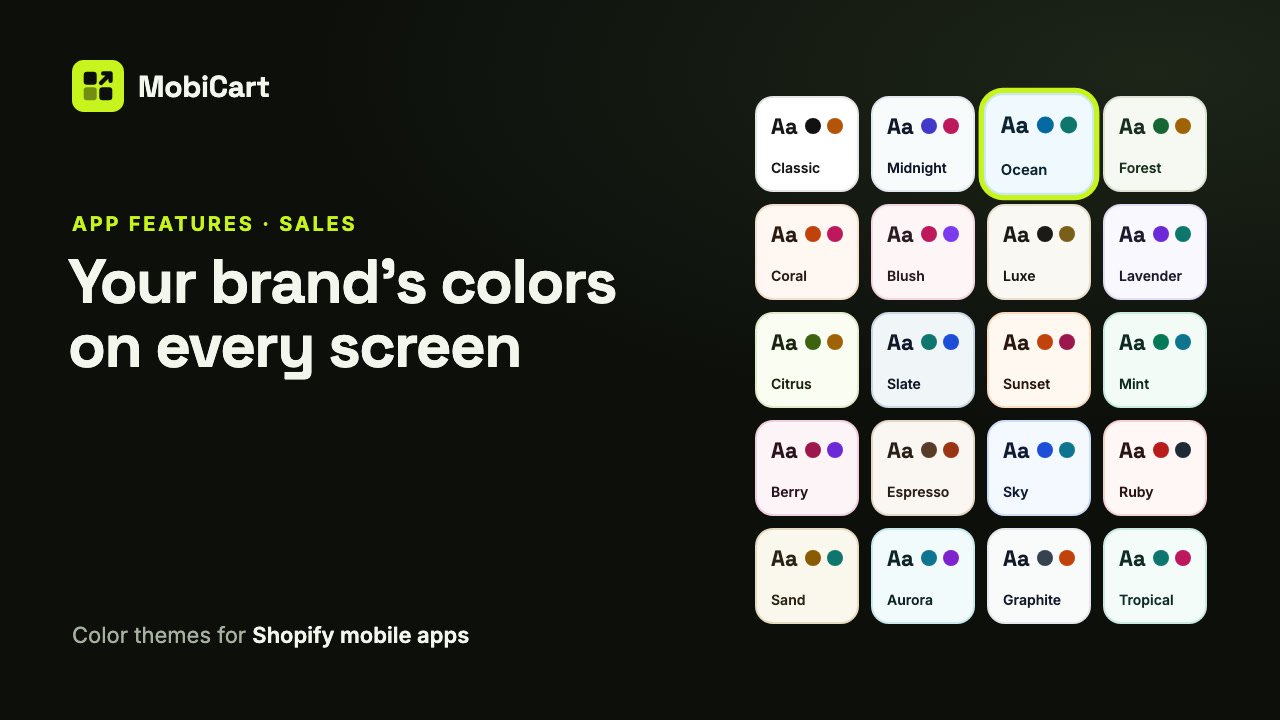
Brand colors can increase sales in your Shopify mobile app by making it feel like your store, keeping every price and button easy to read, and making the next step obvious on every screen. This post explains how, what to set up, and how to check it in your own numbers.
Short answer: shoppers buy from stores they recognise and trust, and they can only tap what they can see. An app in your own colors, with readable text and buttons that stand out, removes doubt and friction between browsing and paying.
Prefer to watch? This video tutorial shows the whole setup.
What app colors cover
In MobiCart, your app’s colors come from a color theme: a set of colors that every screen uses, from the top bar and tab bar to buttons, product cards, banners and the account screen. You pick one of 20 themes, then change any color to match your brand.
A theme changes colors only, so you can try different looks without touching your pages.
How colors affect sales
Four things change for the shopper. Each one removes a moment of doubt or effort on the way to checkout.
1. The app feels like your store
A shopper who knows your website should feel at home in your app. When the app uses your brand’s colors, it reads as your store, not a generic template, which matters most at the moment you ask for their payment details.
2. Prices and buttons are easy to read
Pale text on a pale background is easy to miss, especially on a phone outdoors. MobiCart’s built-in themes keep text at a 4.5:1 contrast ratio or better, the level the Web Content Accessibility Guidelines ask for. If you change colors, the Builder warns you when text gets hard to read.
3. The next step stands out
Your Primary and Accent colors fill the buttons, the selected tab and your banners. When those colors stand apart from the rest of the screen, “Shop now” and “Add to cart” are the first things the eye lands on.
4. Every screen matches
One theme colors every screen, on iPhone and Android alike. Shoppers don’t hit a page that looks like it belongs to another shop, which keeps them moving instead of second-guessing.
What we cannot tell you
We don’t have a study that says “brand colors lift app sales by X percent”, and we are not going to invent one.
How much colors help depends on your brand, your products and how shoppers find you. Treat this as a reasoned case and check it in your own numbers; the last section explains how.
What each color does for sales
| Color | Where shoppers see it | Why it matters for sales |
|---|---|---|
| Primary | Buttons, the selected tab, banners, header icons | The main action is the most visible thing on screen |
| Accent | Sale badges, banner buttons, the selected chip | Offers and highlights stand out |
| Background and Text | Every screen | Easy reading keeps shoppers browsing |
| Cards | Product cards, the tab bar | Products look clean and separate |
| Error | The cart badge | The cart count catches the eye |
Which theme fits your store
| Store type | Start from | Then change |
|---|---|---|
| Fashion, beauty | Classic, Blush or Luxe | Primary to your brand color |
| Sports, outdoor | Forest, Ocean or Slate | Accent for sale banners |
| Food, drink | Espresso, Citrus or Sand | Background to a warm tint |
| Electronics | Graphite, Midnight or Sky | Primary and Accent from your logo |
| Kids, gifts | Coral, Berry or Tropical | Keep the theme, check contrast |
Two rules hold for every store: use your real brand colors for Primary and Accent, and fix every contrast warning before you share your app.
How to set it up in MobiCart
The whole setup is in the MobiCart Builder, with no code and no Publish step for colors.
- Open Colors. In the App Builder, click Colors in the left rail.
- Pick a theme. Choose the one closest to your brand. Your pages and blocks stay as they are.
- Add your brand colors. Set Primary and Accent to your own, then check their text colors.
- Fix any warnings. If the Builder says text may be hard to read, move the colors further apart.
- Check it on your phone. Scan the Live preview code to see your app in its new colors.
Every setting is explained step by step in the docs: Choose your Shopify mobile app’s colors and theme.
Mistakes that cost sales
Ignoring the contrast warning. Text that is hard to read is text shoppers skip, and that includes prices and buttons.
A primary color that blends in. If Primary is close to the background, your main buttons stop looking like buttons.
Too many strong colors. Primary and Accent should stand out because the rest of the screen is calm. Keep backgrounds and cards quiet.
Colors that don’t match your website. Shoppers who come from your site should recognise the app at once.
How to tell if it is working
Compare a couple of weeks before and after you change your colors.
- Add-to-cart from the app. If buttons stand out more, more shoppers should use them.
- Banner taps. Banners in your Primary and Accent colors should get noticed.
- Orders from the app. The number that matters in the end.
Change one thing at a time, so you know which change made the difference.
Frequently asked questions
Do app colors really affect sales?
They can, by building recognition and making buttons and prices easy to see. We have no percentage to promise; compare your add-to-cart rate and app orders before and after.
Should my app use the same colors as my website?
Usually, yes. Shoppers who know your site should recognise your app. MobiCart lets you enter your exact brand colors.
What is a good contrast for text?
At least 4.5:1 between text and its background. The Builder warns you when a color pair falls below that.
How long does it take to change my app’s colors?
A few minutes. Pick a theme, change a couple of colors, and your app uses them right away, with no Publish step.
Will a new theme change my layout?
No. A theme changes colors only. Your pages and blocks stay as they are.
Can I try themes without affecting my live app?
Not separately. Colors apply to your app as soon as you change them, and shoppers see them the next time they open it. Compare themes in the Builder’s phone preview, then settle on one.
Try it on your own store
Building and previewing your app in MobiCart is free, so you can try every theme on your own phone before you decide anything. See pricing for what each plan includes when you publish.
Planning the rest of your app? Read How a Bottom Navigation Bar Can Increase Sales in Your Shopify Mobile App and How a Category Browser Can Increase Sales in Your Shopify Mobile App.
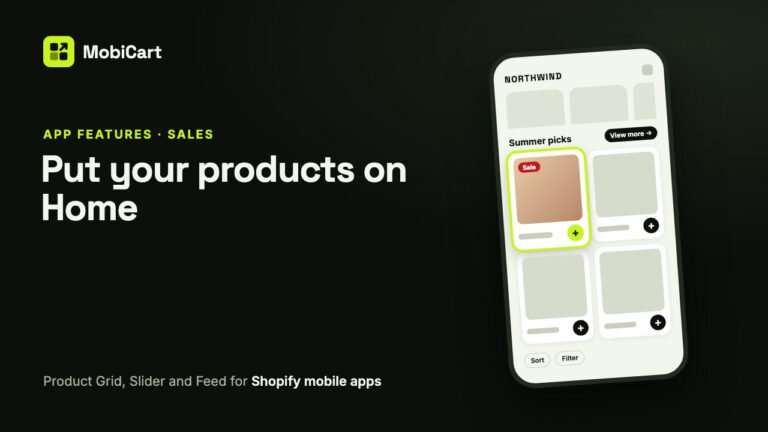
How Product Blocks Can Increase Sales in Your Shopify Mobile App
A Product Grid, Product Slider and endless Product Feed put products on your Shopify mobile app’s Home screen and let shoppers buy from there. Here is how they affect sales.
Read article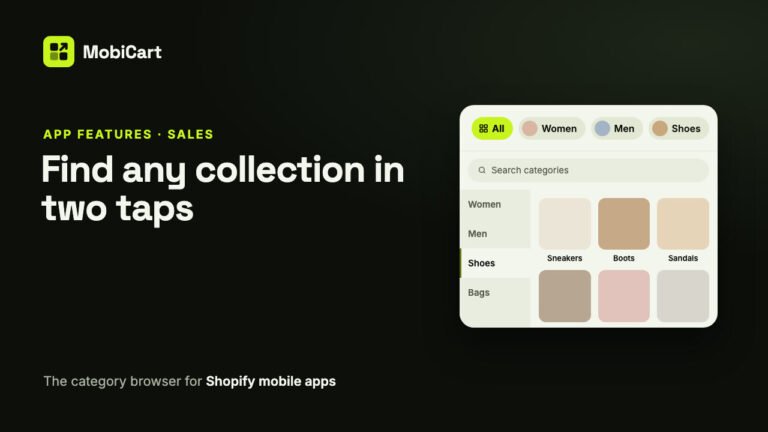
How a Category Browser Can Increase Sales in Your Shopify Mobile App
A category browser can increase sales in your Shopify mobile app by getting shoppers from Home to the right collection in a couple of taps. Here is how, and how to set it up.
Read article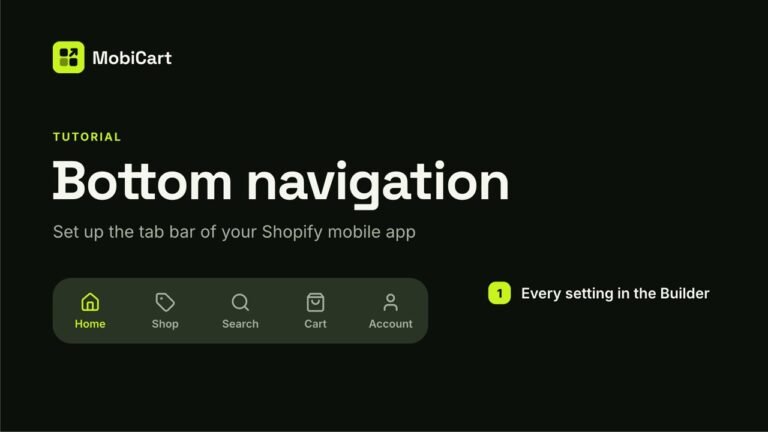
How a Bottom Navigation Bar Can Increase Sales in Your Shopify Mobile App
A bottom navigation bar can increase sales in your Shopify mobile app by keeping the cart, search and your categories one tap from every screen. Here is how, and how to set it up.
Read article