
 MobiCart
How a Home Header Can Increase Sales in Your Shopify Mobile App
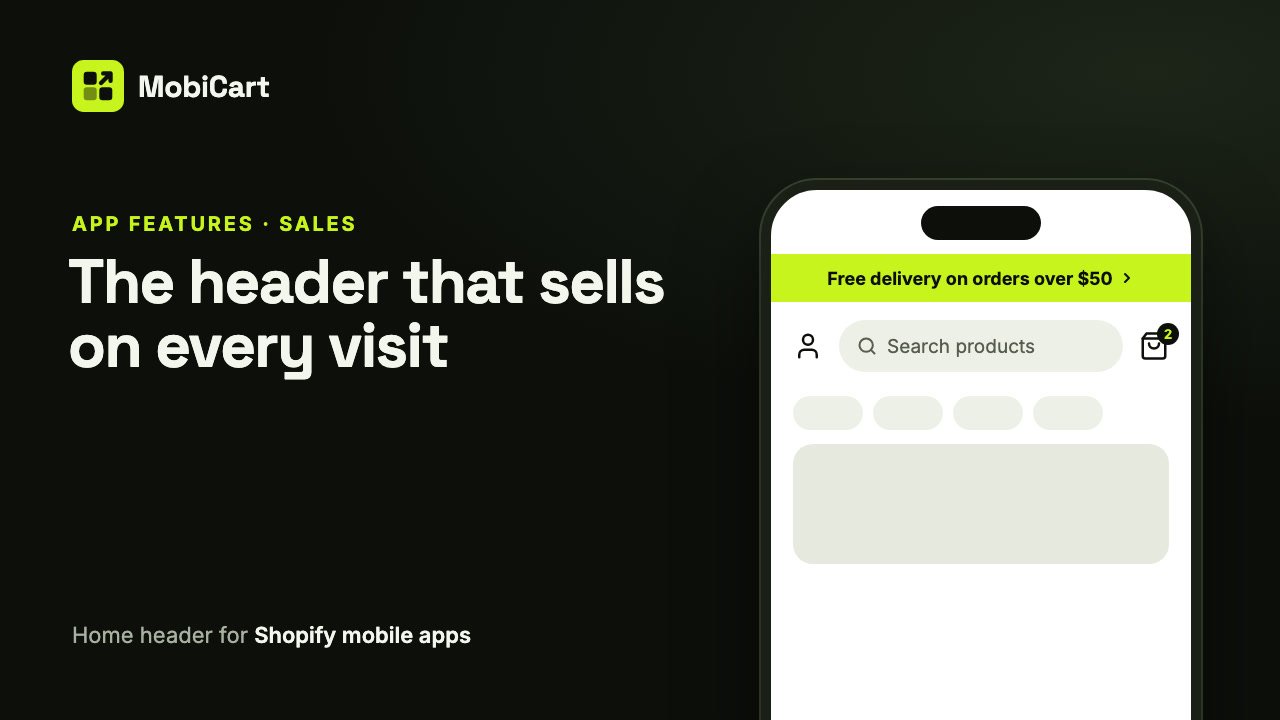
A home header can increase sales in your Shopify mobile app by keeping search one tap away, showing a live cart count that pulls shoppers back to checkout, and carrying one offer in an announcement bar that links straight to the products it is about. This post explains how each part works, what to set up, and how to check it in your own numbers.
Short answer: the header is the first thing every shopper sees on Home. When it makes searching, reaching the cart and finding your current offer take one tap each, fewer shoppers drift off between “I want something” and “I paid for it”.
What the home header is
In MobiCart, the home header is the fixed bar at the top of your app’s Home screen: an account button, a search bar and a cart button with a live item count. Above or below it, you can add an announcement bar with one short message that can link to a product or a collection.
The header can’t be moved or removed, so it is always there when a shopper opens your app. What you choose is how it looks and what it says.
How the home header affects sales
Four things change for the shopper. Each one removes a step between wanting something and paying for it.
1. Search is always one tap away
A shopper who already knows what they want shouldn’t have to browse for it. The search bar sits at the top of Home and opens search with one tap. Its Placeholder text can say what you sell, like “Search coats, knits and more”, so shoppers know what to type before they start.
2. The cart count pulls shoppers back to checkout
The cart button shows how many items are in the cart, up to 99, and the number updates whenever Home appears. A shopper who added something yesterday sees the count the moment they open the app, one tap from finishing the order. You choose the badge color, so it can stand out against your theme.
3. Your offer is the first thing shoppers read
The announcement bar puts one message at the very top of the screen: free delivery over a threshold, a sale, a new collection. Because it sits in the header, it shows on Home every time, without taking a banner slot further down.
4. The offer links to what it is about
A message like “Winter sale: 40% off coats” works best when tapping it opens those coats. The announcement bar links to a product or a collection, and a linked bar shows a small arrow so shoppers know it is tappable. That turns a notice into a shortcut to the products.
What we cannot tell you
We don’t have a study that says “an announcement bar lifts app sales by X percent”, and we are not going to invent one.
How much the header helps depends on your offer, your catalog and how shoppers find you. Treat this as a reasoned case and check it in your own numbers; the last section explains how.
What each part does for sales
| Part | What shoppers see | Why it matters for sales |
|---|---|---|
| Search bar | Your placeholder text and a search icon | Shoppers who know what they want find it in one tap |
| Cart button | A live item count | Brings shoppers back to an unfinished order |
| Account button | A person icon | Returning customers reach their orders quickly |
| Announcement bar | One message, still or scrolling | Your current offer is read before anything else |
| Announcement link | A small arrow after the message | The offer opens the products it is about |
Which setup fits your store
| Store type | Search bar | Announcement bar |
|---|---|---|
| Large catalog, electronics | A placeholder that names your main categories | Linked to a collection of current deals |
| Fashion, beauty | Short placeholder, Pill rounding | A returns or delivery promise, still |
| Food, drink | A placeholder with your best sellers | Delivery cut-off times, scrolling slowly |
| Drops, limited editions | Default placeholder | Linked to the drop, above the search bar |
Two rules hold for every store: keep the announcement to one short message, and link it whenever it talks about specific products.
How to set it up in MobiCart
The whole setup is in the MobiCart Builder, with no code.
- Open the header. In the App Builder, pick Home and click Header at the top of the layers list.
- Set up the search bar. Type a Placeholder, then choose the Search icon, Style and Rounding.
- Choose the icons. Pick the Cart icon, the Icon color and the Cart count color, and decide whether to show the account button.
- Add an announcement bar. Turn on Show an announcement bar, type your Message and link it to a product or a collection.
- Style it. Choose Motion, Bar color, Bar height and Position.
- Save, preview, publish. Click Save as Draft, check it on your phone with Live preview, then click Publish.
Every setting is explained step by step in the docs: Customize the home header of your Shopify mobile app.
Mistakes that cost sales
A message that goes nowhere. An offer about specific products without a link makes shoppers go looking for them. Link it.
Too much text in the bar. The bar holds up to 120 characters, but a message that takes two lines, or scrolls for a long time, is easy to skip. One short sentence reads best.
A cart count that blends in. If the badge is the same color as the icons around it, shoppers miss it. Pick a Cart count color that stands out against your theme.
A stale offer. A sale that ended last week tells shoppers the app isn’t looked after. Update the message when the offer changes, and publish.
How to tell if it is working
Compare a couple of weeks before and after you change the header.
- Searches from the app. A clearer placeholder should lead to more searches.
- Visits to the linked collection. If the announcement bar links somewhere, that page should get more visits from the app.
- Orders from the app. The number that matters in the end.
Change one thing at a time, so you know which change made the difference.
Frequently asked questions
Does an announcement bar really help sales?
It can, by putting your current offer in front of every shopper on Home and linking it to the products. We have no percentage to promise; compare visits to the linked page and app orders before and after.
Should the announcement bar scroll?
Only if the message is short. A still bar shows up to two lines; a scrolling one runs on one line. Phones set to reduce motion, or with a screen reader on, always show it still, and shoppers can press and hold to stop it, in line with the WCAG guidance on moving content.
What should my search placeholder say?
What shoppers can find: your main categories or best sellers, in a few words. It holds up to 60 characters.
Why don’t I see the cart button in my header?
Your bottom navigation has a Cart tab, so the header leaves out its own cart button. The same goes for the account button and an Account tab.
Can I change the header for one day only?
You change it in the Builder and publish when you are ready. There is no schedule, so update and publish the message yourself when the offer starts and ends.
Does the header look the same on iPhone and Android?
Yes. One set of settings drives both apps, each with its own icon set.
Try it on your own store
Building and previewing your app in MobiCart is free, so you can try your header on your own phone before you decide anything. See pricing for what each plan includes when you publish.
Planning the rest of your app? Read How a Bottom Navigation Bar Can Increase Sales in Your Shopify Mobile App and How Brand Colors Can Increase Sales in Your Shopify Mobile App.
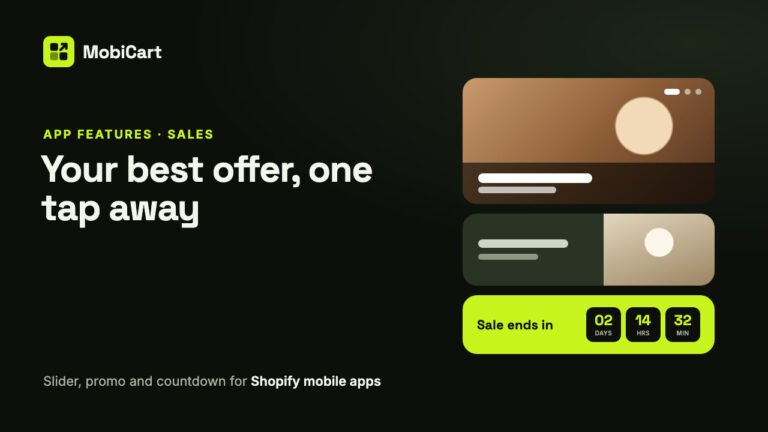
How Home Page Banners Can Increase Sales in Your Shopify Mobile App
How an Image Slider, a Promo Banner and a Countdown Timer put your best offer one tap away in your Shopify mobile app, and how to measure the effect.
Read article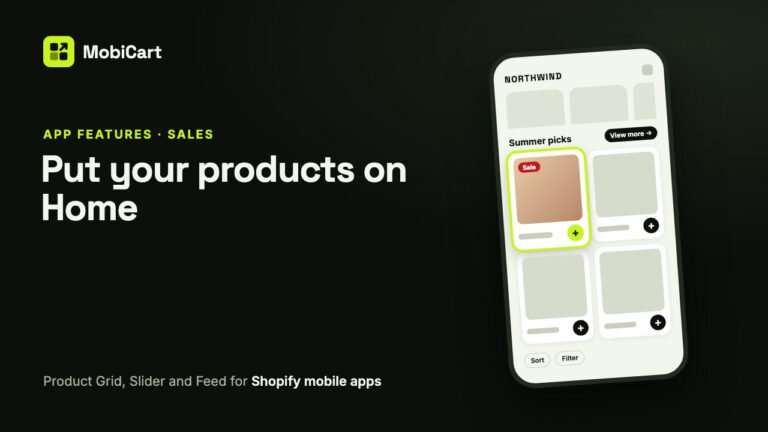
How Product Blocks Can Increase Sales in Your Shopify Mobile App
A Product Grid, Product Slider and endless Product Feed put products on your Shopify mobile app’s Home screen and let shoppers buy from there. Here is how they affect sales.
Read article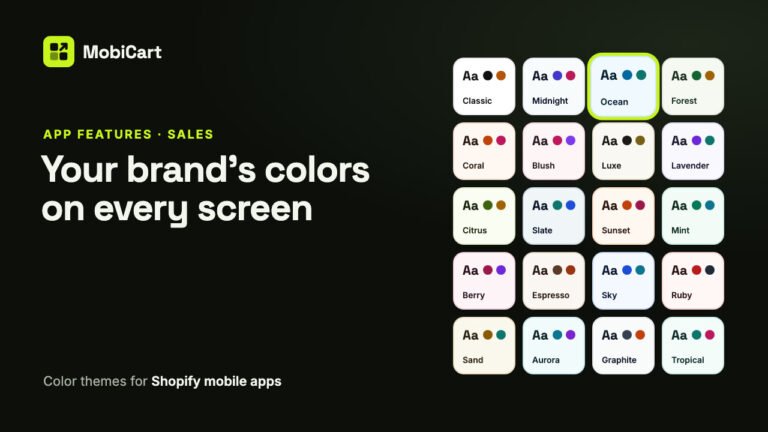
How Brand Colors Can Increase Sales in Your Shopify Mobile App
Brand colors can lift sales in your Shopify mobile app by making it feel like your store, keeping prices and buttons readable, and making the next step obvious.
Read article