
 MobiCart
How Cart Recommendations Can Increase Sales in Your Shopify Mobile App
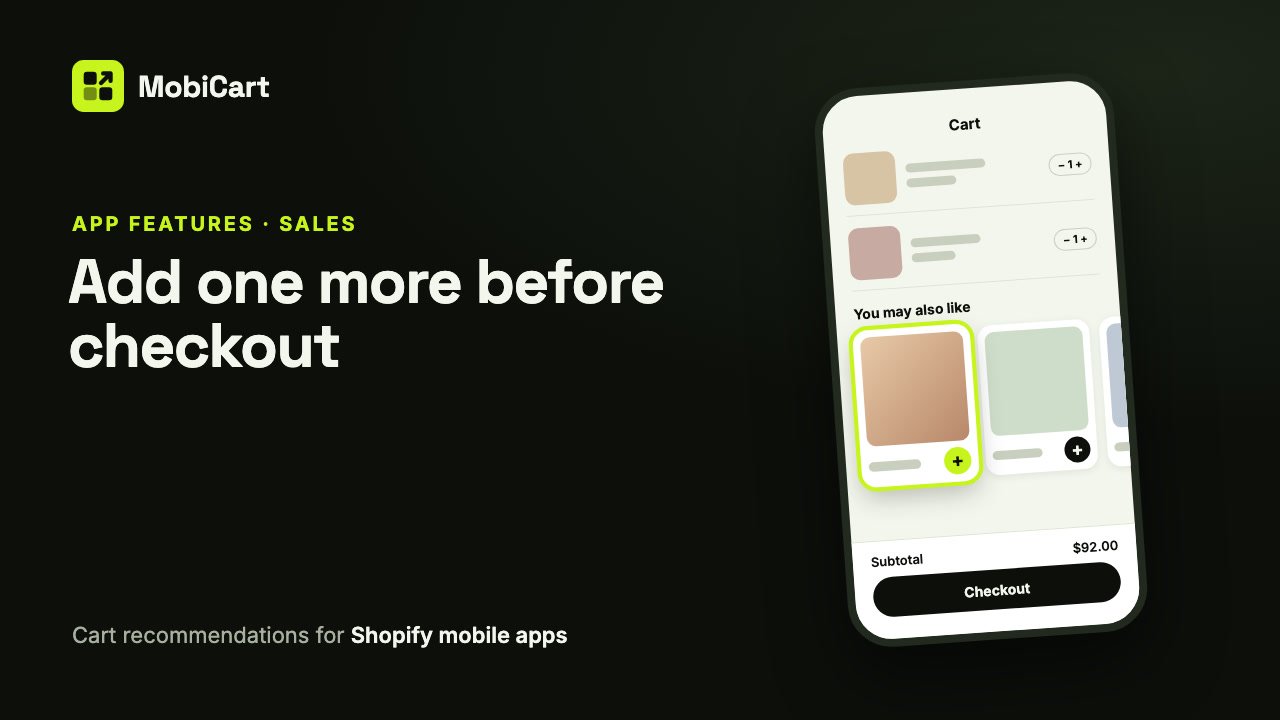
Cart recommendations can increase sales in your Shopify mobile app by showing shoppers, right on the cart page, the products that go with what they are already buying, so adding one more is a single tap before checkout. This post explains how the MobiCart cart page does that, what it can’t promise, and how to tell whether it works for your store.
Short answer: the cart is the moment a shopper has already decided to buy. A short row of products that fit the cart, each with its own add button, gives them a reason to add something they would otherwise have to go back and find, without getting in the way of Checkout.
What the cart page is
The cart page is the screen in your app where shoppers check their products, change quantities and tap Checkout. In MobiCart, the cart lines and Checkout are always there. What you design, in the Builder, is the row of recommended products under the lines: whether it shows, where its products come from, and how it looks.
Checkout itself is Shopify’s own checkout, opened inside the app. Your payment methods, shipping, taxes and discount codes work exactly as they do in your Shopify store.
How cart recommendations affect sales
They catch the shopper at the point of purchase
On a product page, a shopper is still deciding. In the cart, they have decided. A suggestion there asks a smaller question: not “do you want this?” but “do you want this too?”. A matching belt for the jeans, a case for the phone, a refill for the bottle.
They remove the trip back into the catalog
Without suggestions, a shopper who thinks “I should get a strap for that” has to leave the cart, search, open the product and add it. Many won’t. In MobiCart’s cart, each suggestion has a round add button: one tap puts it in the cart, and it leaves the row. Only products with options, such as sizes, open their page first.
They stay relevant as the cart changes
With Shopify’s complementary products as the source, the app reads the products most recently added to the cart and suggests what goes with them. Add a different product and the suggestions follow. Products already in the cart, products the shopper just removed and sold-out products are always left out, so the row doesn’t suggest what can’t be bought.
They don’t block Checkout
The row sits under the cart lines, and Subtotal and Checkout stay pinned at the bottom of the screen. A shopper who wants to pay right away never has to scroll past or close anything.
What we cannot tell you
We don’t have a study that says cart recommendations raise sales by a set percentage, and we won’t invent one. The effect depends on your catalog, your prices and how well the suggestions fit. A store with natural add-ons (accessories, refills, gift wrap) has more to gain than a store selling one big-ticket item.
What we can say is what the feature removes: the steps between “that would go well with this” and having it in the cart. The section “How to tell if it is working” below shows how to measure the rest in your own numbers.
Each option, and why it matters for sales
| Option | What it does | Why it matters for sales |
|---|---|---|
| Show recommendations | Turns the row on or off | Off, the cart is lines and Checkout only |
| Title | The heading, “You may also like” by default | A clear heading tells shoppers these are add-ons, not ads |
| Products come from | Shopify’s complementary products, A collection, or Products I pick | Decides how well the suggestions fit the cart |
| When Shopify has none | Related products, A collection, or Nothing | Keeps the row useful for products you haven’t curated |
| Most to show | 2 to 10 products | Fewer, better suggestions keep attention on the best match |
| Recommendations layout | Row that swipes, or List | A list makes each suggestion bigger; a row fits more |
| Card style, Corners, Image shape | How the cards look | Cards that match your app look like part of the store |
| Show price, Show original price when on sale | The price lines | A visible sale price is a reason to add one more |
| Cart button icon (App settings) | Plus, Cart, Bag or Basket on add buttons | A clear add button gets tapped |
Which source to choose
| Store type | Products come from | Why |
|---|---|---|
| Fashion and accessories | Shopify’s complementary products | Outfits differ by product; curate pairs in Search & Discovery |
| Beauty and skincare | Shopify’s complementary products, with A collection when Shopify has none | Routines pair well; a collection of minis covers the rest |
| Food, coffee and consumables | A collection of add-ons | The same add-ons (filters, snacks, gift cards) suit almost every cart |
| Small catalogs | Products I pick | You know your best add-ons; pick 4 to 6 in your order |
Two rules hold for every store:
- Fit beats volume. A row of four products that clearly go with the cart is better than ten loose matches.
- Curate your best sellers first. Set up complementary products in Search & Discovery for the products that sell most, and let related products cover the rest.
How to set it up in MobiCart
- In the Builder, open the Pages menu and choose Cart.
- Keep Show recommendations on, and leave Title blank or write your own.
- Under Products, choose Products come from, and what to show When Shopify has none.
- Set Most to show, then the Layout, card style and image shape.
- Optional: in App settings, choose a Cart button icon.
- Save as Draft, check it with Live preview on your phone, then Publish.
The full step-by-step guide, with every setting and what shoppers see, is in the docs: Set up the cart page in your Shopify mobile app.
Mistakes that cost sales
- Choosing “A collection” and not picking one. The Builder warns you, and the app falls back to Shopify’s complementary products until you pick it.
- Picking only one product. With Products I pick, the app hides the row until you pick at least 2.
- Never curating in Search & Discovery. Related products are a fair default, but Shopify picks them automatically, not from what you know goes together. Your own pairs usually fit better.
- Suggesting what sells out. Sold-out products are left out, so a collection that is mostly out of stock can leave the row nearly empty, or hidden.
How to tell if it is working
Measure in your own store, over a few weeks, before and after:
- Average order value of orders from the app, in Shopify’s reports.
- Items per order from the app. Cart suggestions mostly move this number.
- Checkout rate. It should hold steady. If it drops, the row may be too long: lower Most to show.
Change one thing at a time, such as the source, so you know what made the difference.
Frequently asked questions
What are cart recommendations in a Shopify mobile app?
They are products suggested on the cart page, under what the shopper is buying, each with a button that adds it to the cart. In MobiCart they come from Shopify’s complementary products, a collection, or products you pick.
Do I need Shopify’s Search & Discovery app?
Only for curated complementary products. Without them, MobiCart shows Shopify’s related products by default, so the row works from day one.
Will recommendations slow down the cart?
No. The cart lines and Checkout show first, the row loads in the background, and a saved copy shows at once on later visits. If it can’t load, the cart simply shows without it.
Can shoppers buy a suggestion without leaving the cart?
Yes, for products with a single option: one tap on the add button. Products with options, such as sizes, open their page so the shopper can choose.
Does MobiCart change my checkout?
No. Checkout is Shopify’s own checkout, opened inside the app. Signed-in shoppers get their email and addresses filled in by Shopify.
Can I turn the row off?
Yes. Switch off Show recommendations and the cart shows its lines and Checkout only.
Try it on your own store
Building and previewing your app in MobiCart is free, so you can set up the cart page and try it on your own phone before you decide anything. The Free plan is $0, with a branded Android app on your own Google Play account and 5 orders a month. Launch is $19 a month for iOS and Android with 200 orders a month, Grow is $49 a month with unlimited orders, and Advanced is $99 a month and adds multi-language and multi-currency. Every plan is flat, with no revenue share: see pricing.
Planning the rest of your app? Read How Collection Page Filters Can Increase Sales in Your Shopify Mobile App and How Product Blocks Can Increase Sales in Your Shopify Mobile App.
How Search Can Increase Sales in Your Shopify Mobile App
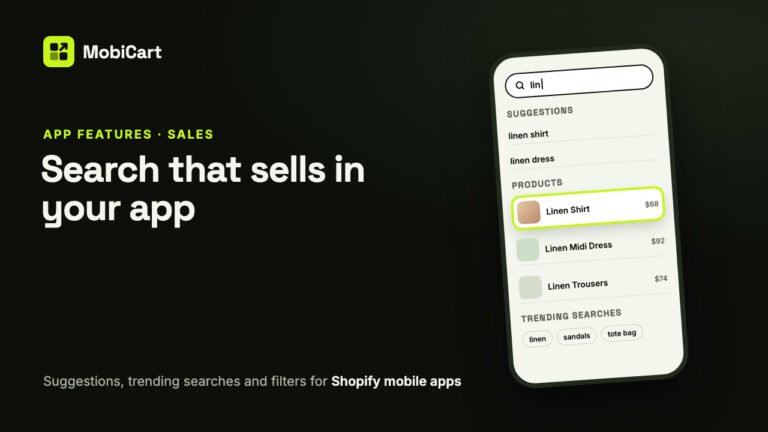
Search takes shoppers who know what they want straight to it. Here is how suggestions, trending searches and in-stock-first results help your Shopify mobile app sell.
Read article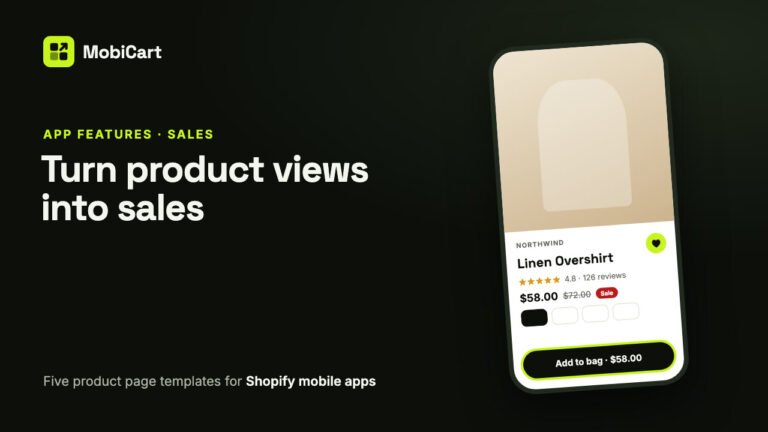
How a Product Page Template Can Increase Sales in Your Shopify Mobile App
Every shopper who buys passes through the product page. Here is how a template that fits your photos, a buy button in reach, reviews and the wishlist help more of them tap Add to cart.
Read article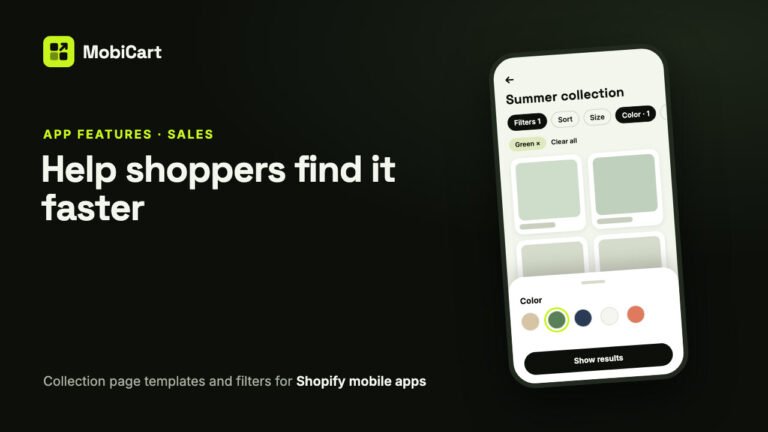
How Collection Page Filters Can Increase Sales in Your Shopify Mobile App
Collection page filters help shoppers narrow a long list to the products they would buy. How the templates, sort and Shopify filters work, and how to measure the effect.
Read article